Tranztool
We use Tranztool to make transcriptions
How To Guide
Step 1 - Connect to server
Tranztool is run across multiple servers. The server manager will send you the specific link to the instance of Tranztool containing your recordings. Note that Tranztool will not load on eduroam!! If you don't have access to the Trinity staff wifi and are trying to access Tranztool from campus, you will need to connect via a mobile hotspot.
Step 2 - Select recordings
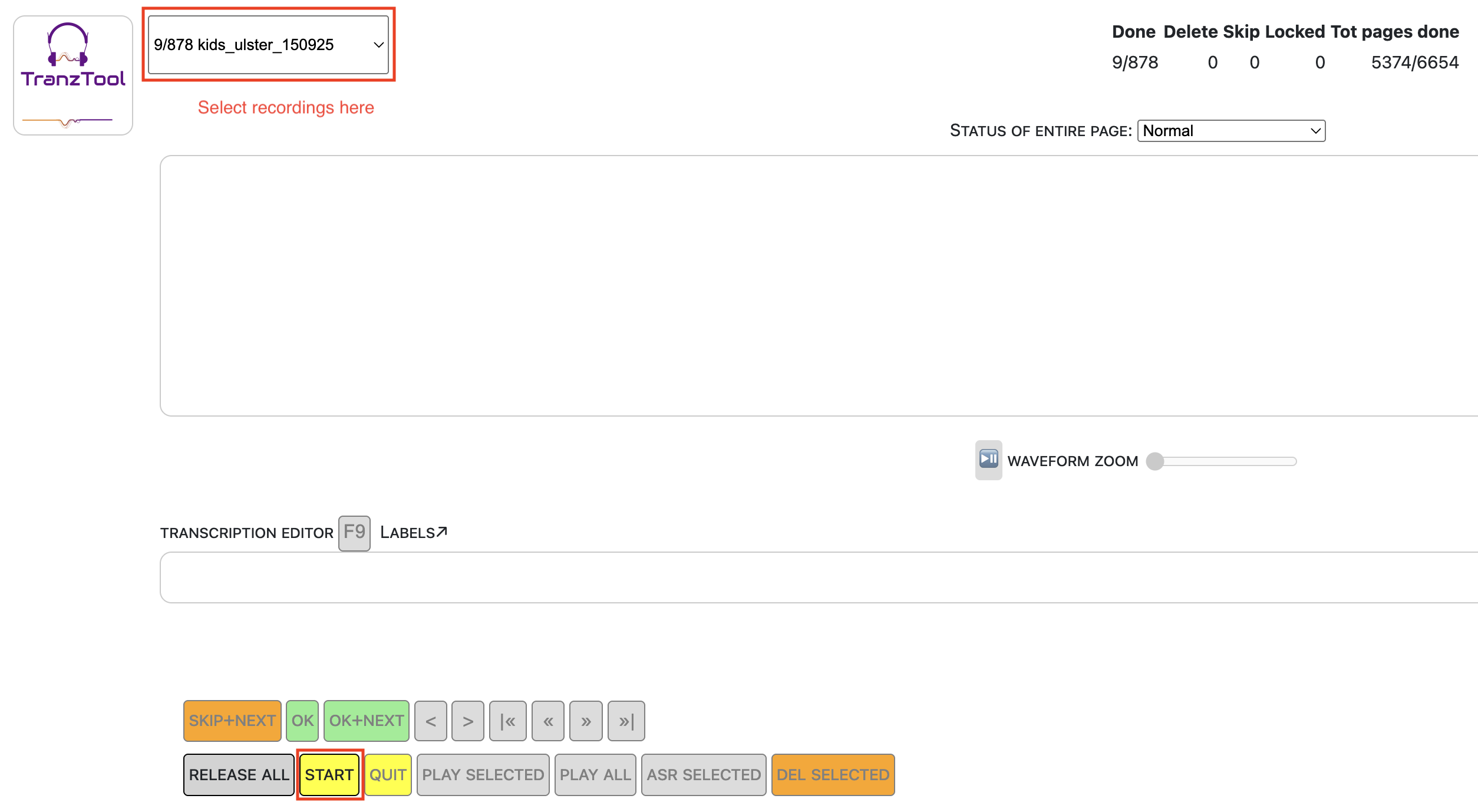
This is the loading screen when you first enter Tranztool. Ensure you have selected the correct set of recordings (there may be many on the one server) and press 'Start'.
Step 3 - Trim silence
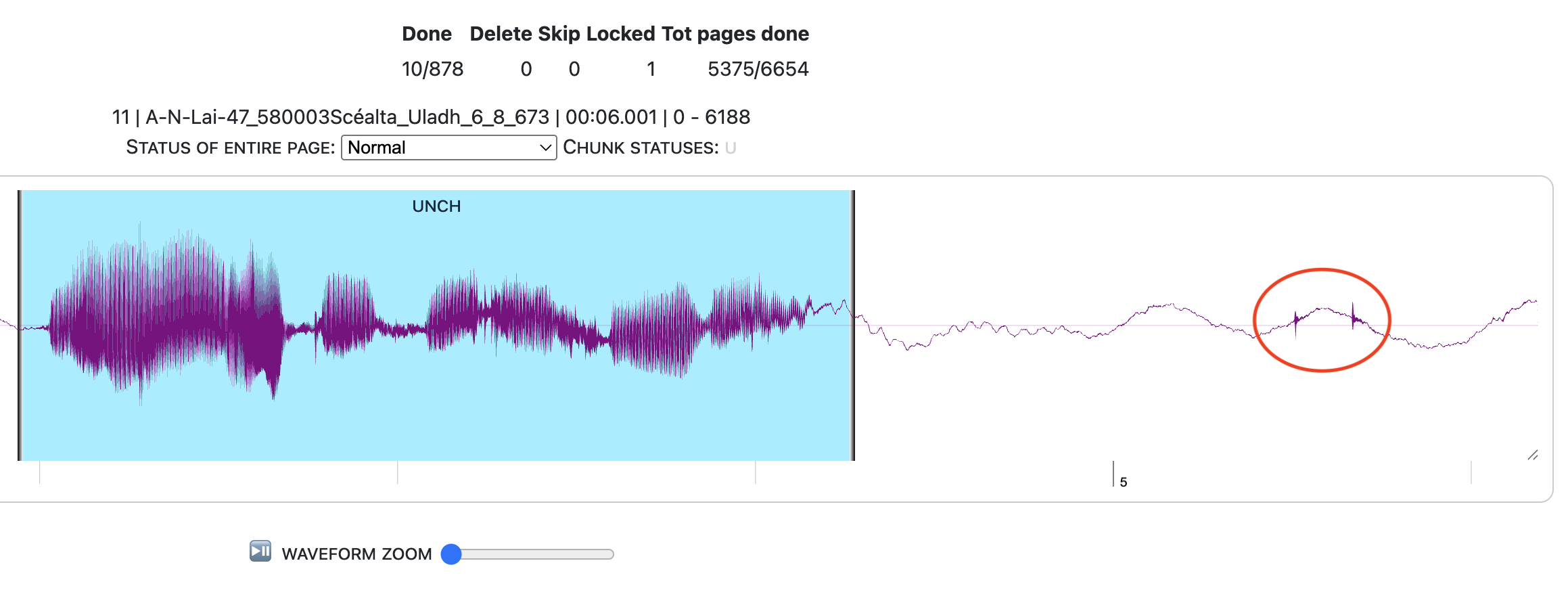
For each recording, trim the silences at each end by moving the slider. If there are no other sounds in the recording, don't worry too much about selecting the exact point at which the recording starts, as the voice activity detection will detect small silences. What matters is that you cut off any talking, laughter, or mouse clicks that may be present in the recording, as these could be mistakenly marked as speech. For example, in the screenshot below, it is important that we remove the mouse clicks highlighted.
Step 4 - Edit transcription
Once the silence is trimmed, click 'play selected' to listen back to the recording, and correct the transcription if needed. Sometimes the transcription will contain disallowed characters, and a warning message will appear on screen. Just delete these characters from the transcription to proceed.
Once you've marked the start and end points of the speech, and corrected the transcription, click 'ok + next' to move to the next recording.
Useful information
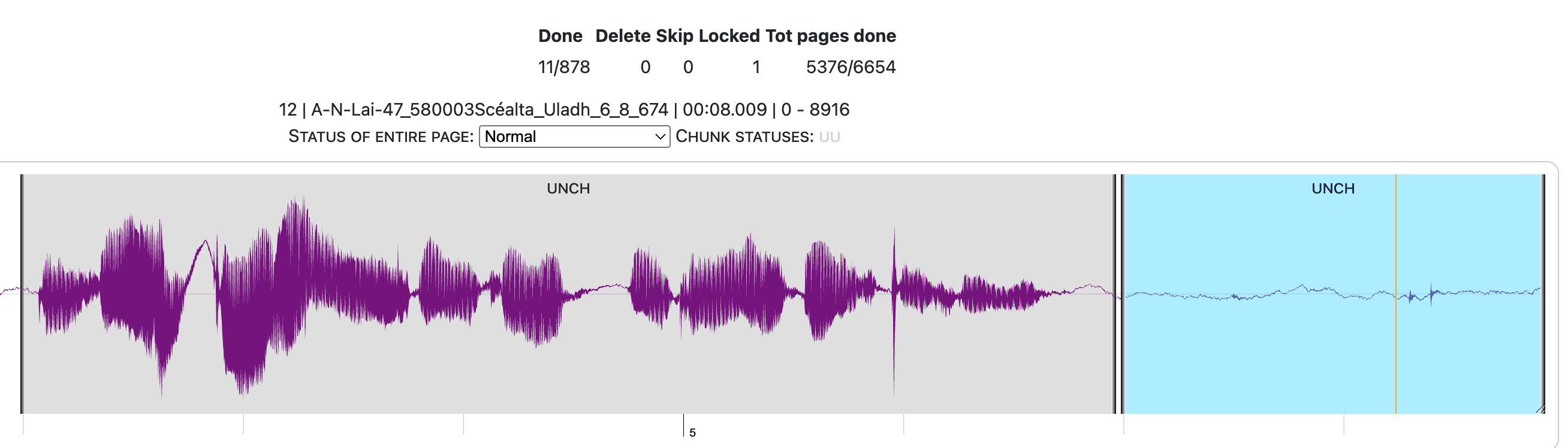
Sometimes an additional segment is created while trying to trim the recording. If this happens, select the newly created segment and press 'del selected'. Then click the back button to go back to the previous recording (this resets the status of the recording). Finally, click forward to return to the present recording.
!! Only use the 'skip' button if the recording is not going to be used for training, for example, if it contains only noise or background chat. If you want to come back to a recording later because you are unsure of something, just press the >>| button. It is very awkward to undo a skip.